Scan Tags
Whenever you want to work with SKPident you have to scan RFID tags or QR codes. At this point it is required to have a fully setup System. Read the Preparation section if this is not happened.
When you launch your application you will see 3 options.
[Scan] [Tag Covers] [Assign Pairs]
After pressing scan you have 4 differnet ways to scan a tag.
Environment Scan
If you are in the scanning surface without doing anything else and press the trigger (on time to start and one time to stop) you will find all the tags in the near.
You can adjust the strength of the antenna and accordingly the field of recognition when you slide the button at the bottom from 0 to 100 percent.
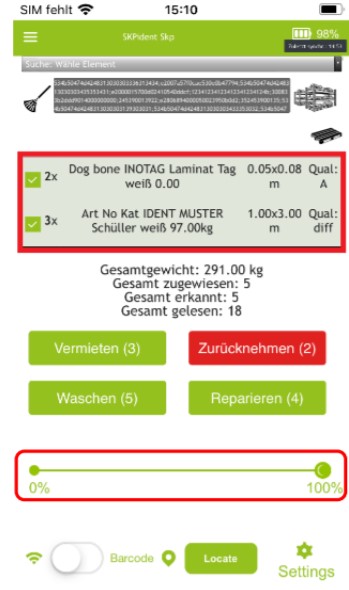
Here is no selection or separation. Every RFID tag will be identified.
Manual Scan
You can immitate an environmental scan by type in the RFID Tag number manually. Therefor you have to change the application settings.
Go to application settings. Here you will find the manual & scan toggle. Please change this to manual.
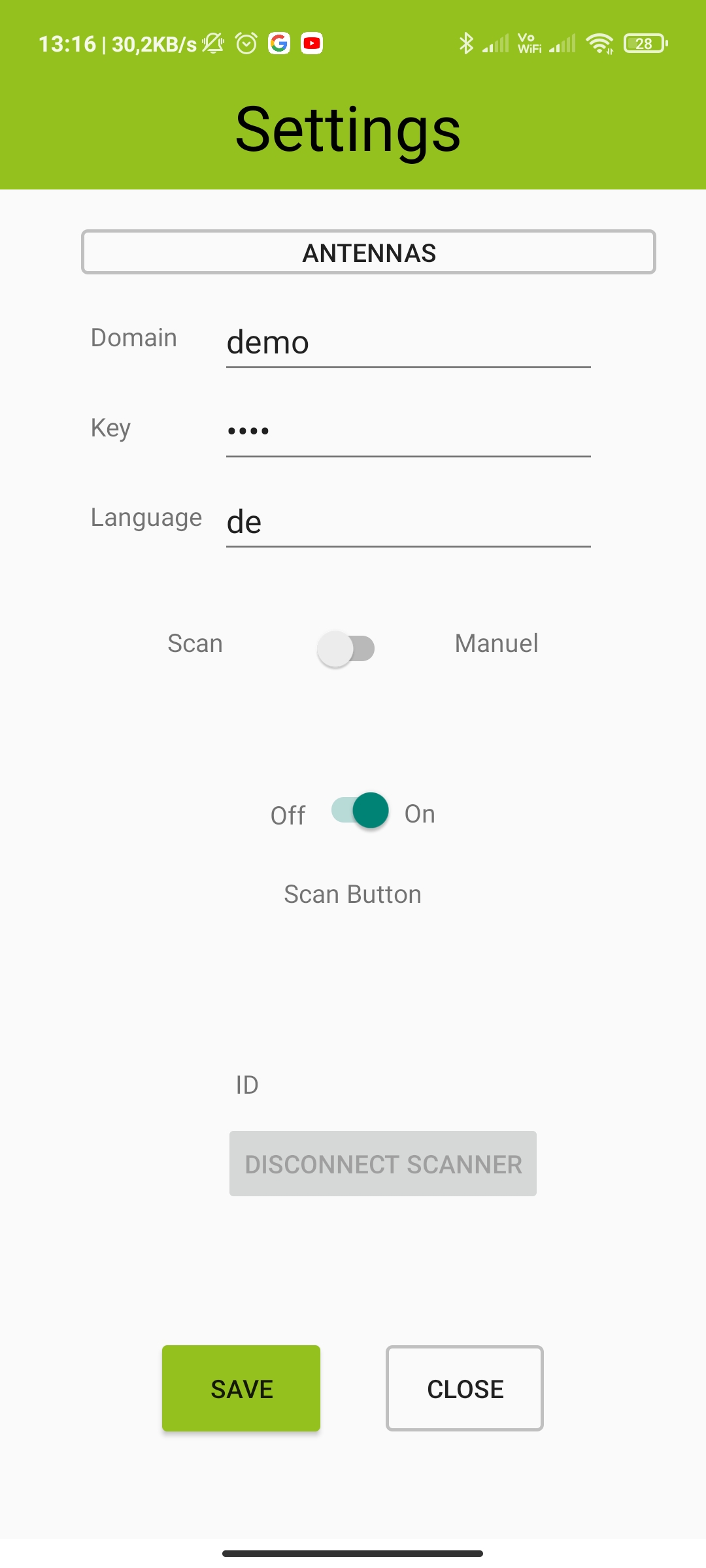
How to enter a tag manual
Now you enter the tag numbers with the keyboard.
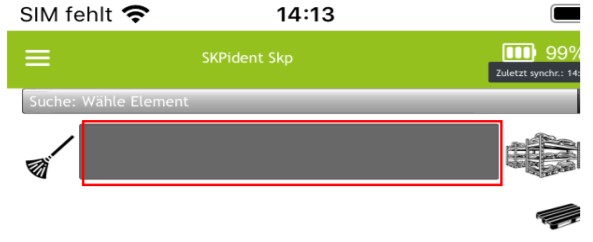
Please only use the last numbers e.g. SKPGMBH100058261; | 58261;
This will go with a single number or with multiple numbers simply separate them with a semicolon [;]. The Pattern be like Number;Number;Number;…….
Search for Elements
You also be able to search for spezific elements. At the Top you will find a dropdown menu where all your defined elements are listed.
Choise your wished element and you will get all tarps according this element.

The Result is the same as doing a normal scan.
We prefer to do this when you try to find one specific tarp of an element type.
(e.g. You search for an Ferrari Roofcover 3x20m with Quality level B)
QR/Bar code scan
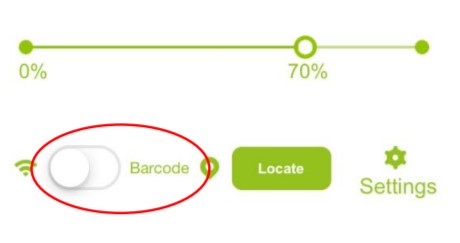
At the bottom of the main Window of your application you will see this toggle. With this toggle you can change the scanning mode of your scanner from rfid to qr- and barcode.
Conclusion
At last you can do manual scanning on pc via your administration panel. You will find [go to App] on the navigation area. This is the same interface like your mobile app. You don’t need to change any settings. How To.