Mobil Assignment
Tag Covers
For your mobile tag assignment, you can use the button in the Start menu [Tag Covers].
If you are not in the Start menu, you can go there by clicking on Home in the navigation bar (white blanks at the top left corner). Then press [Tag Covers] to be at the right starting point.
To tag covers you first have to scan or manually enter a Tag.
When you finish the scan process you will see all scanned IDs. Now you can choose which IDs you want to assign, multiple selections are allowed.
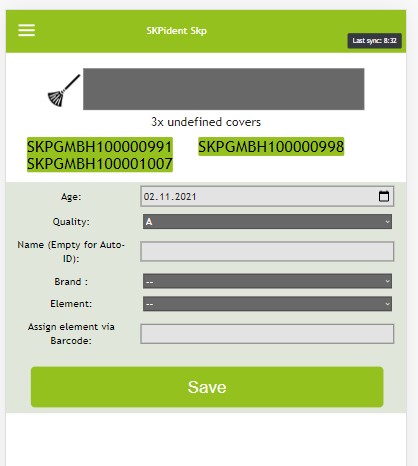
Here you see 3 IDs are scanned and selected. You now can unselect them by touch.
An input field show you the first Information you can give to the tarp.
- Age
- Quality
- You can define an individual name. (It is not recommended to define a name, if you assign more then one tarp.)
- Choose the brand of the element.
- Choose the element to connect with.
- (Alternativly you can scan an QR code of an element with the last line of the inputfield)
Assign Pairs
With [assign pairs] you can connect two parts of an tarp. Before you can do this you have to define partner elements. (How To)
When you want to connect pairs you can go to [Assign Pairs] in your main menu.
If you are not in the Start menu, you can go there by clicking on Home in the navigation bar (white blanks at the top left corner). Then press [Assign Pairs] to be at the right starting point.
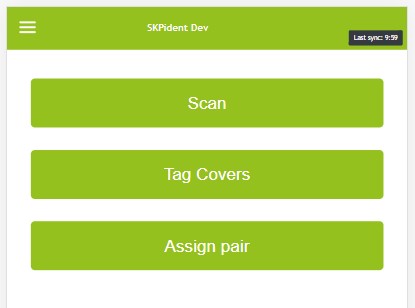
After entering the menu you can proceed like a normal tag cover assignment with the difference that you always have to choose 2 IDs.
The elements you can select are only the partnerelements you defined.
When you press save you will se the following table.
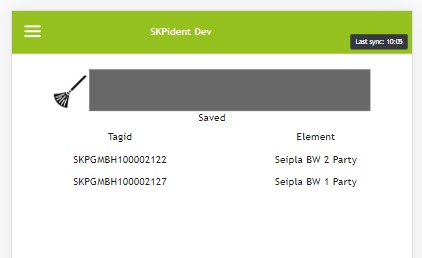
This will stay visible for 5 minutes or when you start a new assignment.